
 Dan James on July 15, 2026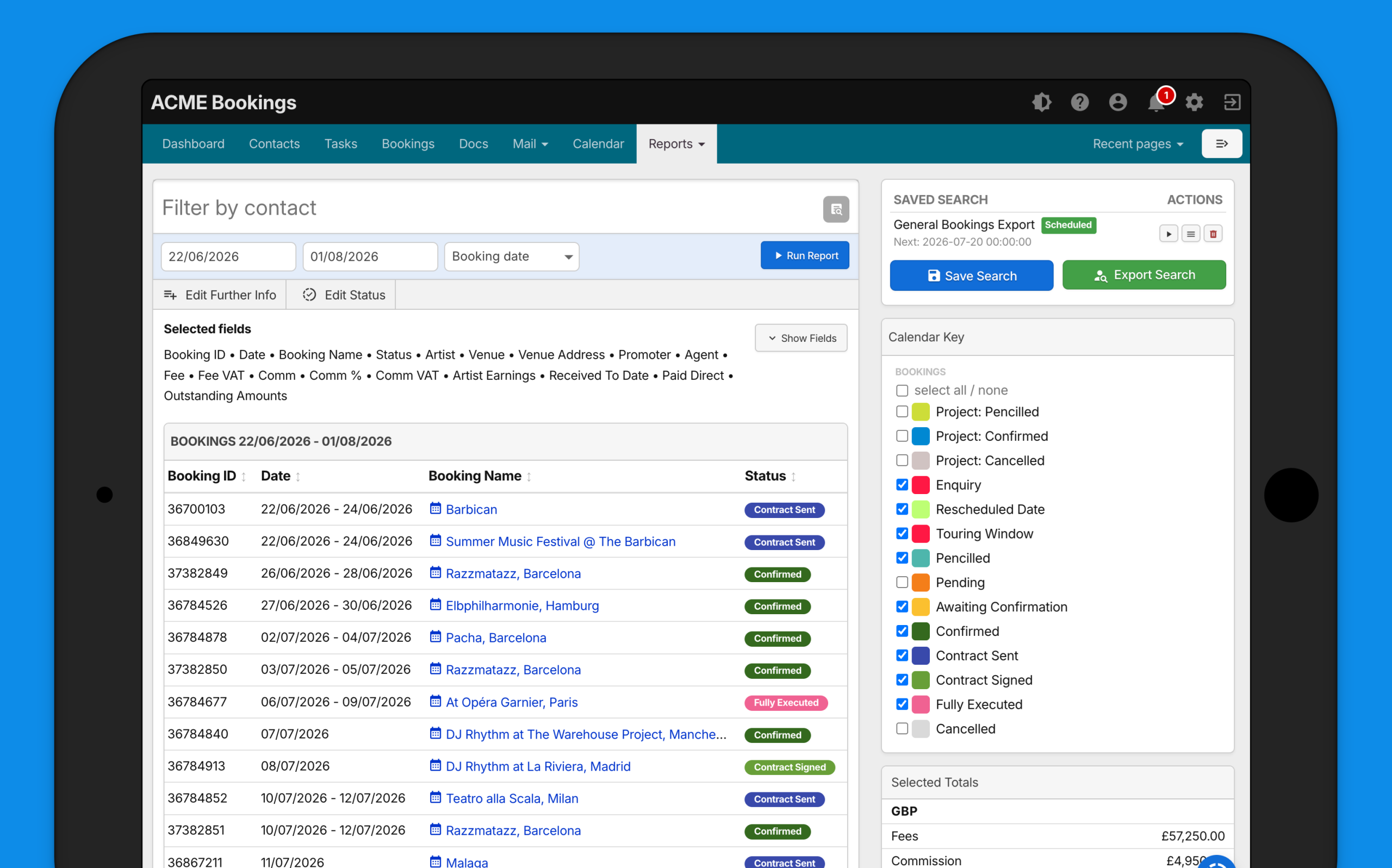
We’ve updated the Booking Details report to make large reports easier to build, review, save, export and schedule. A major improvement is that the report now gives you more control before it reloads, so you can choose your filters and fields first, then run the report when you are ready. Further to that and a huge development is the scheduled export workflow is now connected to saved searches.
What has changed?
The Booking Details report now has a clearer workflow:
- Choose your filters
- Choose your fields
- Click Run Report
- Review, sort or export the results
- Optionally save or schedule the search
Previously, some changes could trigger the report to reload immediately. This could be slow when working with large reports. Now, most changes wait until you click Run Report.
Choosing which fields appear in the report
The report field checkboxes have been reorganised to make them easier to manage.
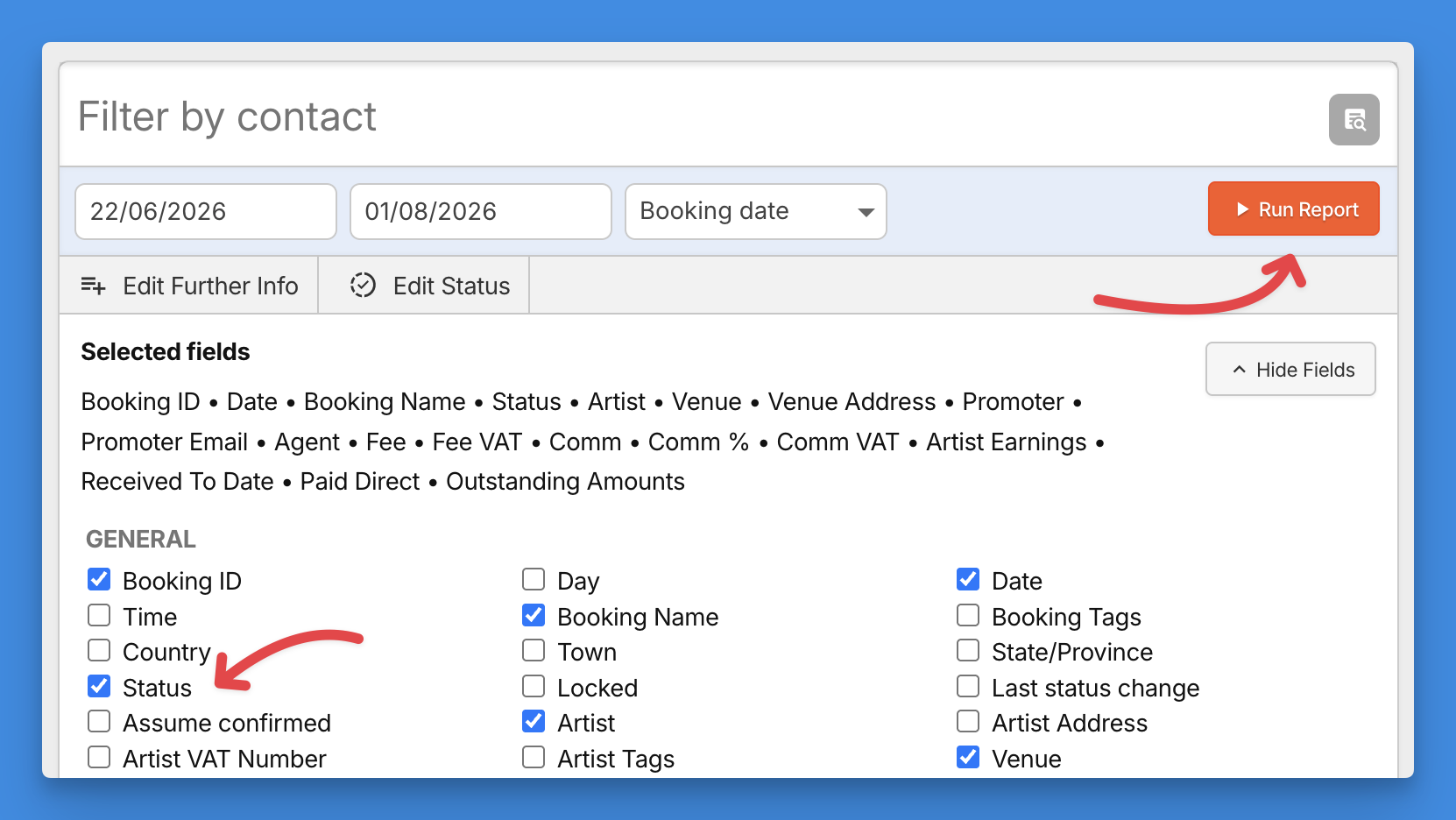
You can now use the field selector area to choose exactly which columns should appear in the report. These include general booking fields, financial fields, further information fields and other contact fields, depending on your account setup and permissions.
When you select or deselect fields, the report does not immediately reload. Instead, the Run Report button changes colour to show that your current report view is out of date.
Click Run Report to apply the changes and rebuild the table.
This helps prevent the report from reloading repeatedly while you are still choosing columns.
Show and hide the field selector
The field selector can now be shown or hidden so that you have more room to view the report.
Use the show/hide control to open the list when you need to change columns, then hide it again when you want to focus on the results.
Your selected fields remain visible in the summary, so you can still see what has been included in the report without keeping the full field selector open.
The Run Report button
The Run Report button is now the main way to refresh the report after making changes.
When you change filters or selected fields, the button changes colour. This means:
- The report settings have changed.
- Click Run Report to load the updated results.
After the report has loaded successfully, the button returns to its normal colour.
This applies to changes such as:
- Date range
- Contact filter
- Include/search options
- Statuses
- Location filters
- Selected columns
This makes the report more predictable and avoids slow automatic reloads while you are still setting things up.
Improved table sorting and sticky header
The report table has also been improved.
You can click column headers to sort the report by that column. Sorting is now more reliable for dates, numbers and text, so columns should behave more consistently.
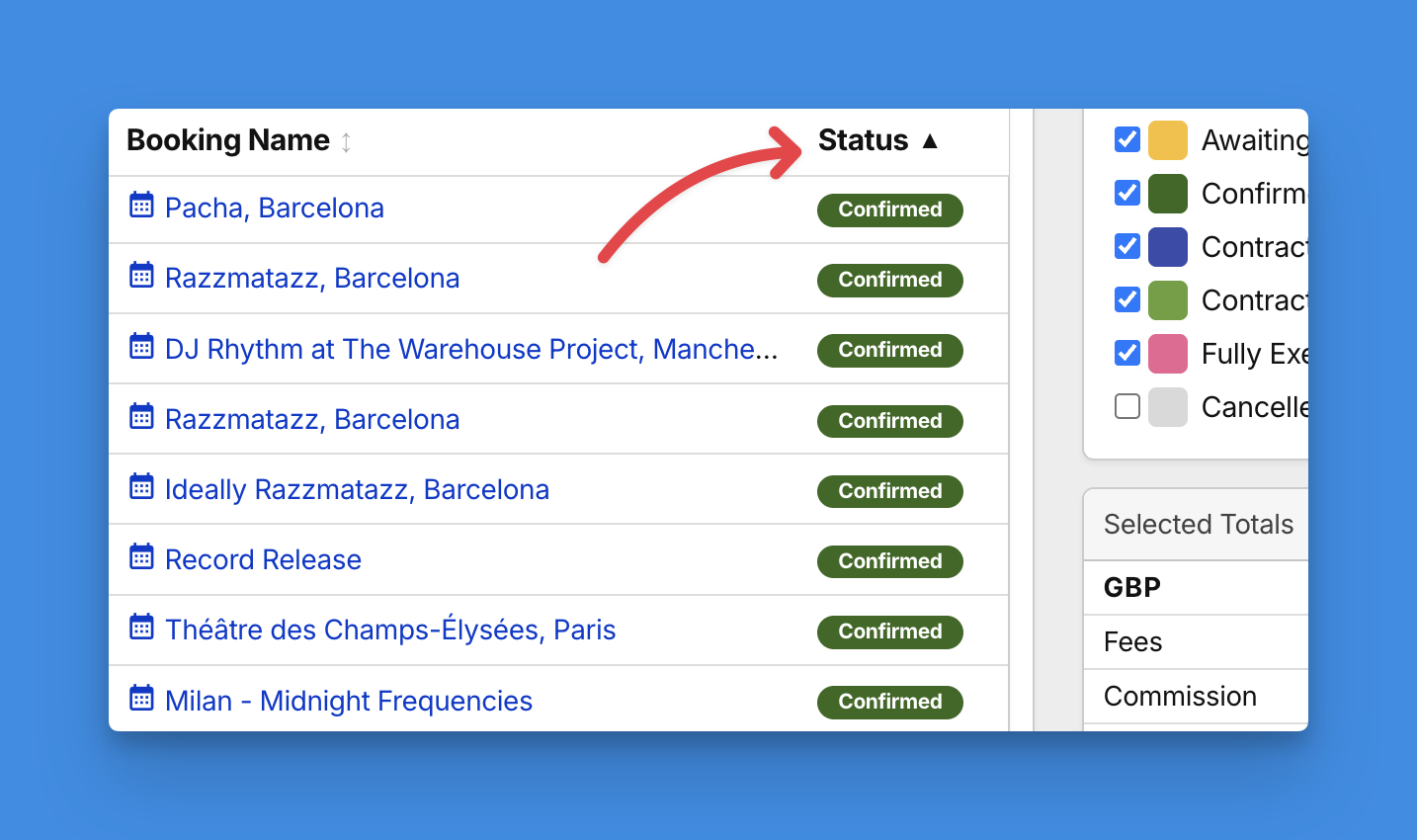
The table header also stays visible as you scroll down the report. This is especially useful for wider reports with many columns, because you can always see which field each column represents.
Clearer totals
The totals have been moved and displayed more clearly.
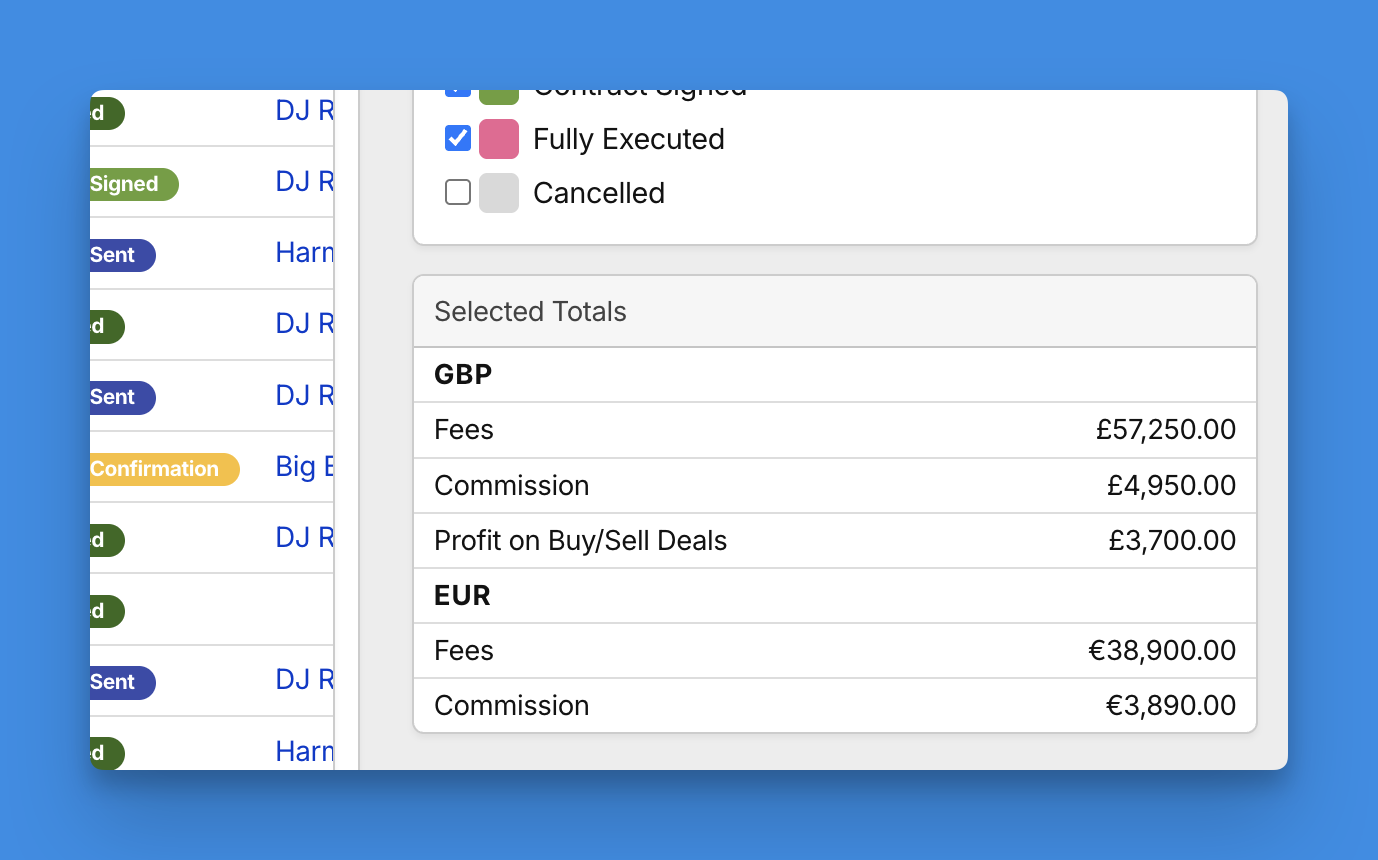
The aim is to make it easier to see what each total represents, especially when the report contains financial columns or multiple currencies.
Rather than having totals buried in the table, the report now presents them in a clearer summary area, helping you understand the overall figures without losing your place in the results.
Saving searches
This is the biggest improvement and one that will save you a huge amount of time. You can now save a Booking Details search so that you do not have to rebuild the same report again later.
Click Save Search after setting up your report.
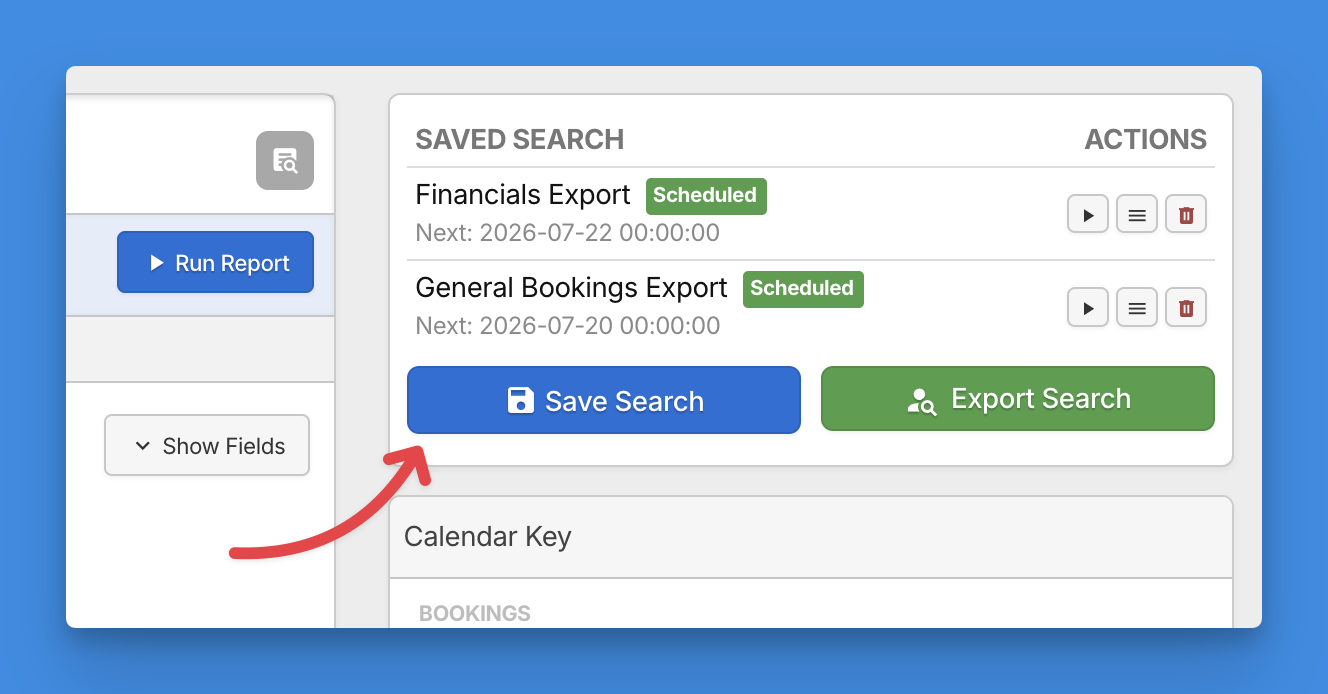
You will be asked to give the saved search a title. Before saving, Overture shows a preview of what will be saved, including things such as:
- Selected contacts
- Date range
- Statuses
- Selected fields
- Location filters
- Search options
- Scheduled export settings, if enabled
This lets you check the setup before saving it.
Saved searches appear in the sidebar.
Running a saved search
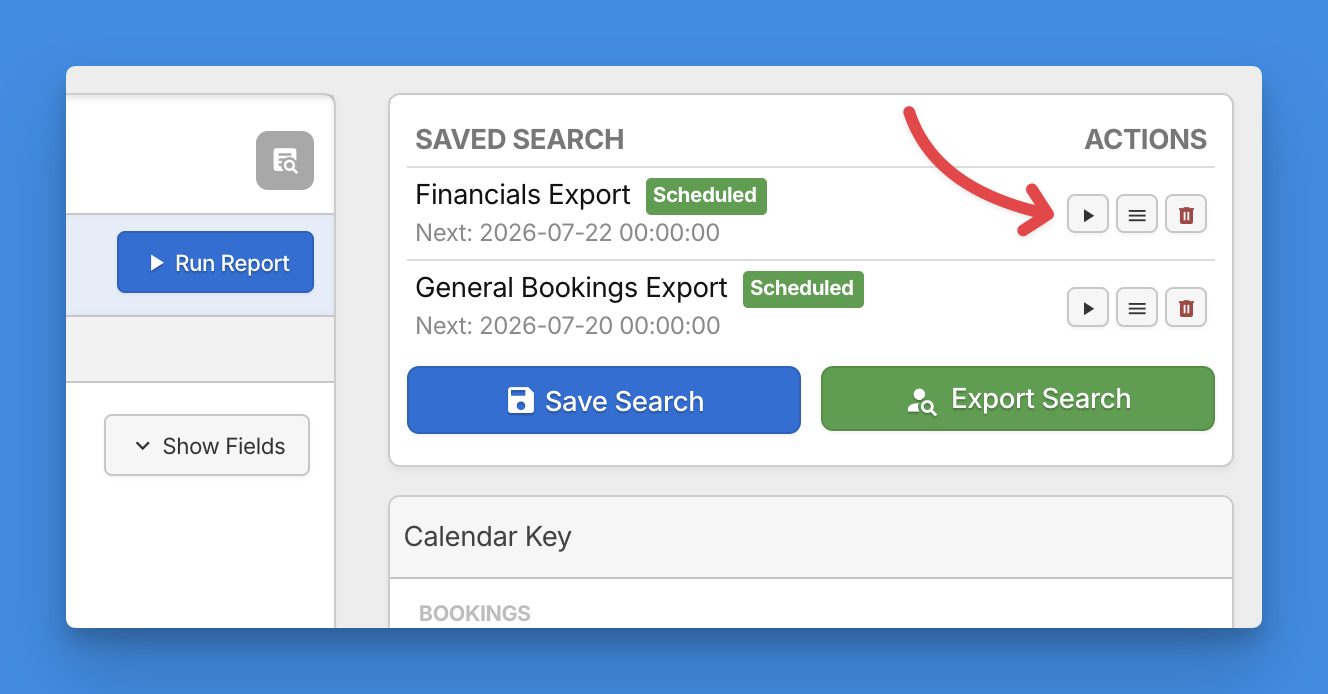
To run a saved search, click the Run button beside it in the sidebar.
Overture will restore the saved filters and selected fields, then rebuild the report using those settings.
This is useful for reports you run regularly, for example:
- Upcoming confirmed bookings
- Monthly financial review
- Artist-specific booking list
- Outstanding contracts
- Recent bookings with selected financial fields
You can also delete saved searches from the sidebar when they are no longer needed.
Exporting the report manually
Manual export still works in the same way.
After running the report, click Export Search to export the currently loaded table.
The export uses the report currently on screen, including the selected fields and filters.
You can still use this option for one-off exports or when you want to manually check the report before exporting.
Scheduling a saved export
Another huge improvement is that when saving a search, you can also choose to schedule it!
This allows Overture to email the report automatically on a regular schedule.
Scheduled exports are based on saved searches, so the export uses the filters and fields you saved.
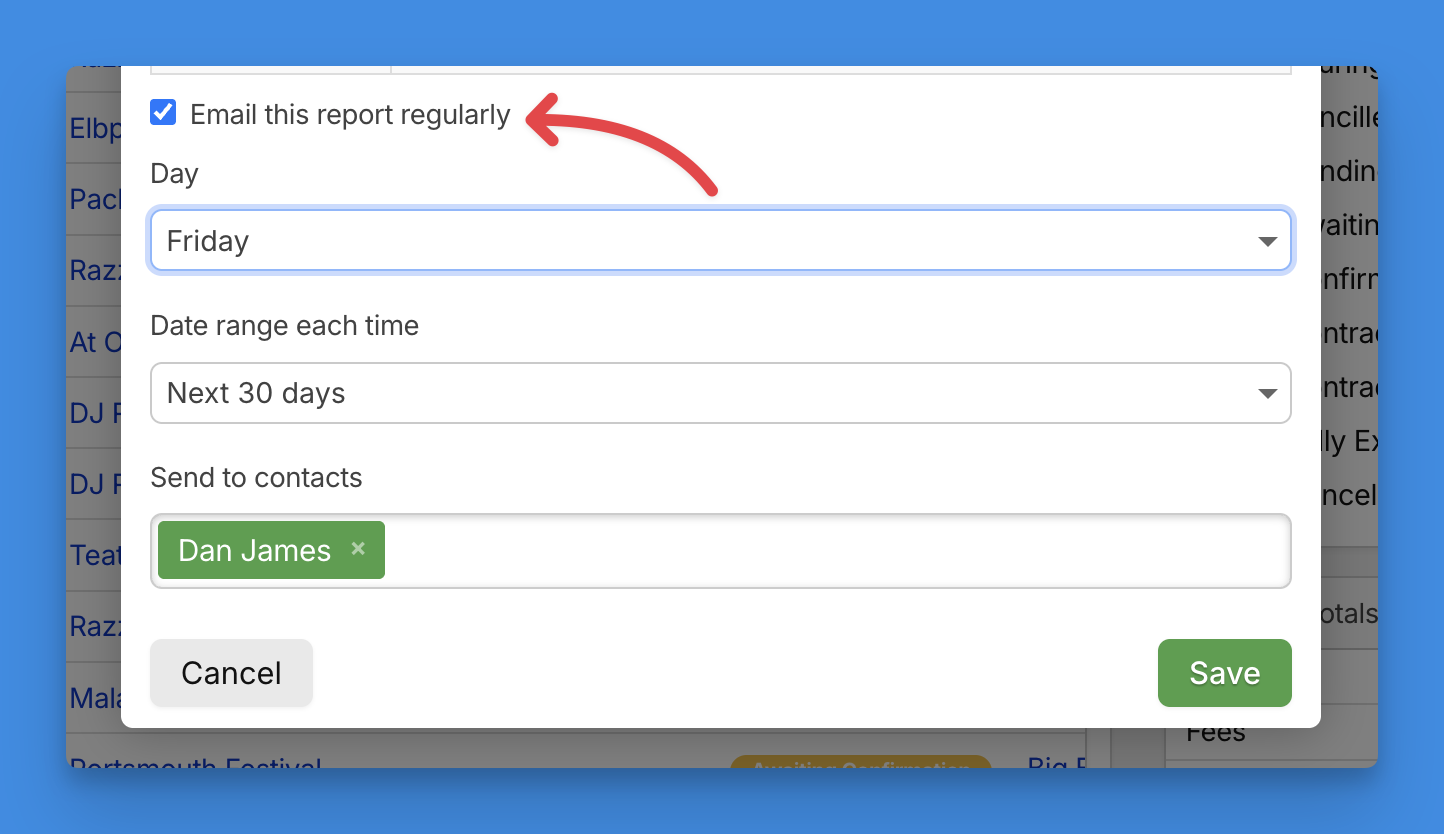
Scheduling options
When scheduling a saved export, you can choose:
- The day of the week to run
- The date range to use each time
- The contacts who should receive the export
The exact processing time is handled by Overture’s scheduled export job. This means users choose the day, while the system processes due exports automatically.
Date range options
Scheduled exports can use a fixed or rolling date range.
Available options include:
- Use the current fixed date range
- Next 7 days
- Next 30 days
- This week
- Next week
- This month
- Next month
- Previous week
- Previous month
Rolling date ranges are recalculated each time the scheduled export runs.
For example, if you save a weekly Monday export with Next 7 days, each Monday export will cover the next 7 days from that scheduled run.
Export recipients
Scheduled exports must be sent to contacts already stored in Overture.
Instead of typing email addresses manually, use the contact search to choose the recipients. Overture will use the email address saved against those contacts when the scheduled export runs.
This helps keep exports connected to your existing database records and gives you a lot of flexibility on who receives your report data, of course be careful to make sure you have the correct contacts selected if you are sending sensetive data out from Overture.
Current scheduled export limits
To keep scheduled exports reliable, there are limits in place.
Current limits are:
Up to 500 rows – Allowed
501 to 1,000 rows – Allowed, but Overture will show a warning
Over 1,000 rows – Blocked for scheduled exports
Maximum active scheduled exports – 10 per user/account setup
Maximum selected fields – 60 fields
These limits are designed to prevent very large reports from slowing down the system or failing during automated processing.
Manual exports are still available for one-off work, but scheduled exports should be kept focused and practical.
If a scheduled export grows too large after it has been saved, Overture will skip that run and notify the owner so the filters can be narrowed.
Recommended workflow
For best results:
- Choose your report filters.
- Choose the columns you need.
- Click Run Report.
- Check the results.
- Sort the table if needed.
- Export manually or click Save Search.
- If it is a regular report, enable scheduled export.
This gives you more control and helps make large Booking Details reports faster and easier to manage.